Create Download Links (Default)
- Right click on any file you want to share (note; this only works for individual files, not folders - to send all the contents of a folder first zip the folder)
- Click the Egnyte "Share", and then "Copy link (default options)" as per the below
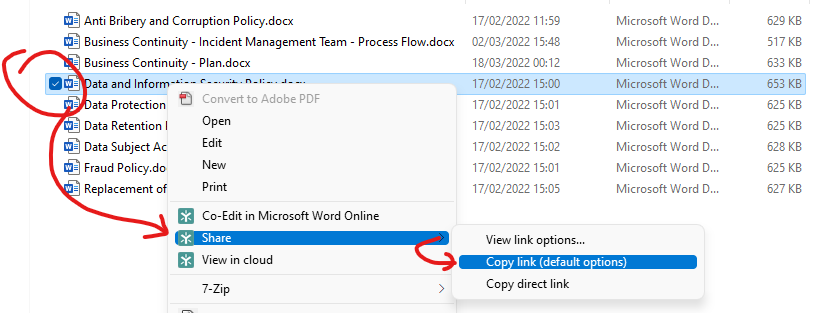
- Open an email, right click, then select paste, you will see a link and a password
- Always send the password in a separate, new, email
That's it. The link will automatically expire after a pre-determined period of time (maximum of 30-days)
Create Download Links (Modified Options)
- Right click on any file you want to share (note; this only works for individual files, not folders - to send all the contents of a folder first zip the folder)
- Click the Egnyte "Share", and then "View link options..."
- A windows will appear similar to the below in your default web browser. Please click "Change link options"

- Once done, you'll see the below full set of options. From here you can change the settings e.g. the default password, if they're allowed to download the file or view it only, when the link expires, and so on
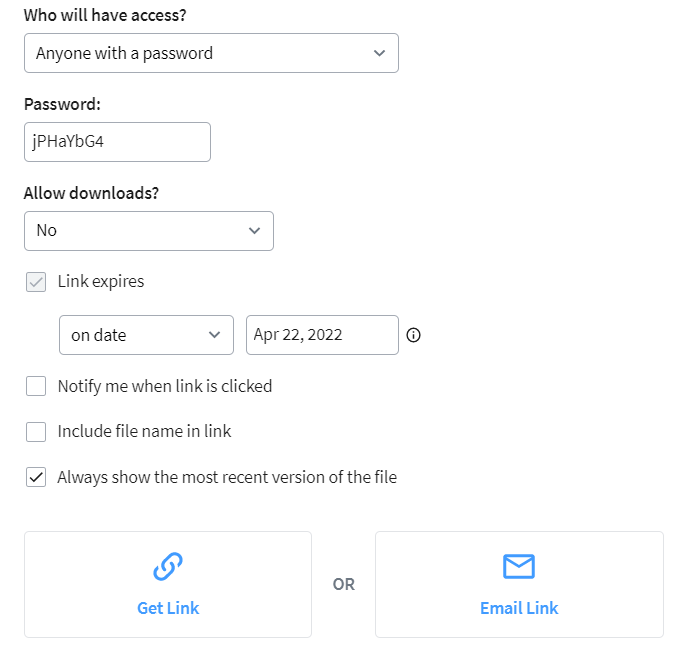
- Make the amends as needed, then simply click "Get Link"
Was this article helpful?
That’s Great!
Thank you for your feedback
Sorry! We couldn't be helpful
Thank you for your feedback
Feedback sent
We appreciate your effort and will try to fix the article